Event timelines, from the first hair appointment to the last dance.
Every event in Gatherwise has its own timeline. Build the schedule for each event day, name the vendor, guest or collaborator responsible for every item, and send each of them a version with only their own call times on it.
Four steps, then you share it.
Add the timeline
Open the event, choose Add timeline, give it a date and a name.
Add the items
One moment per item — a time range or TBD, plus notes, links and instructions in the editor.
Add the other days
Rehearsal dinner, wedding day, brunch — each day its own section inside one timeline.
Name who is responsible
Client team, vendors and guests pull straight from the event's own tabs.
One schedule. A version for everyone on it.
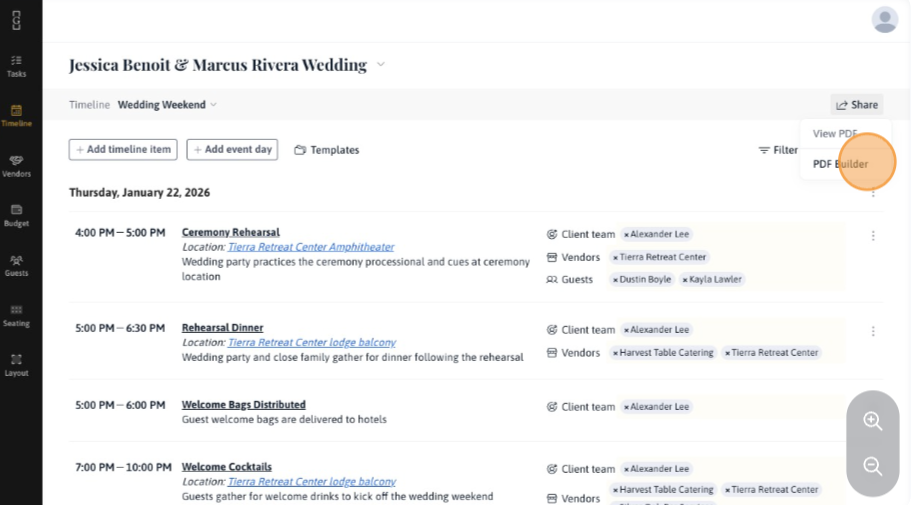
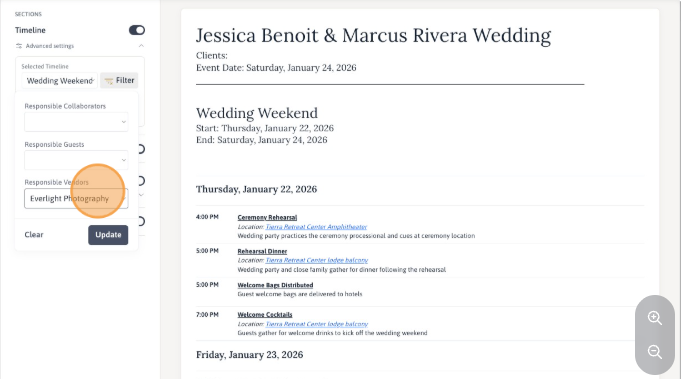
Drag items into the order the day actually runs, or let them sort by time. Then choose Share: View PDF hands you the whole run of show, and PDF Builder narrows it to one responsible collaborator, guest or vendor — so the florist receives the florist's call times and the couple receives the whole weekend.
Save time using Timeline Templates
Create a template event with your standard structure — hair and makeup, ceremony, reception, teardown — and import it into every new client.
It saves hours on each event, and the timeline you have refined over fifty weddings becomes the starting point for the fifty-first.
Questions planners ask first.
Do items need a time?
No. Time ranges are optional — leave an item as TBD until the time is set, and it stays in the schedule where you put it.
Can one event have several days?
Yes. Add an event day and it becomes its own section inside the same timeline — for example Friday's rehearsal dinner and Saturday's wedding day.
Where do vendors and guests come from?
The event's own Vendors and Guests tabs. If an item shows "No vendors yet", add them on that tab first and they appear in the dropdown.
What does the client actually receive?
A PDF generated from the live timeline. Filter first and each vendor receives only the items they are named on.
Can I reuse a timeline?
Yes — save a template event with your standard structure and import it into future events.
Is the timeline on mobile?
Yes. The native iOS and Android app shows the same timeline on event day, so you are not carrying a laptop.
Still deciding? Read the full walkthrough in Building event timelines, or write to support@gatherwise.io.
Everything else on the event.
Timelines, budgets, vendors and exports all live on the same event record — here is the rest of what replaces the other tools in your stack.
Seating & layout
Drag tables onto the room, seat guests by name, and color the seats by meal choice.
See how it worksTasks & reminders
A task carries its own assignees, due date, attachments and conversation.
See how it worksInvoicing
Build the invoice on the event it belongs to, and switch on the payment methods you want.
See how it worksBudget
Estimated against actual, category by category, with paid and still due in the same row.
See how it worksPDF & live page
Choose the sections to include, preview it, and generate both a branded PDF and a live page in one step.
See how it worksVendors & budget
Each vendor keeps its own contacts, notes and documents — and the budget line it is attached to.
See how it worksStart your free trial
Bring one live event over, build its timeline, and send the first filtered PDF today.
Cancel anytime